How to add a Buy Again button to Shopify
MW ReorderFlow places a Buy Again action on paid orders in Shopify customer accounts. Configure it in the customer account editor; no theme code or separate storefront button is required.
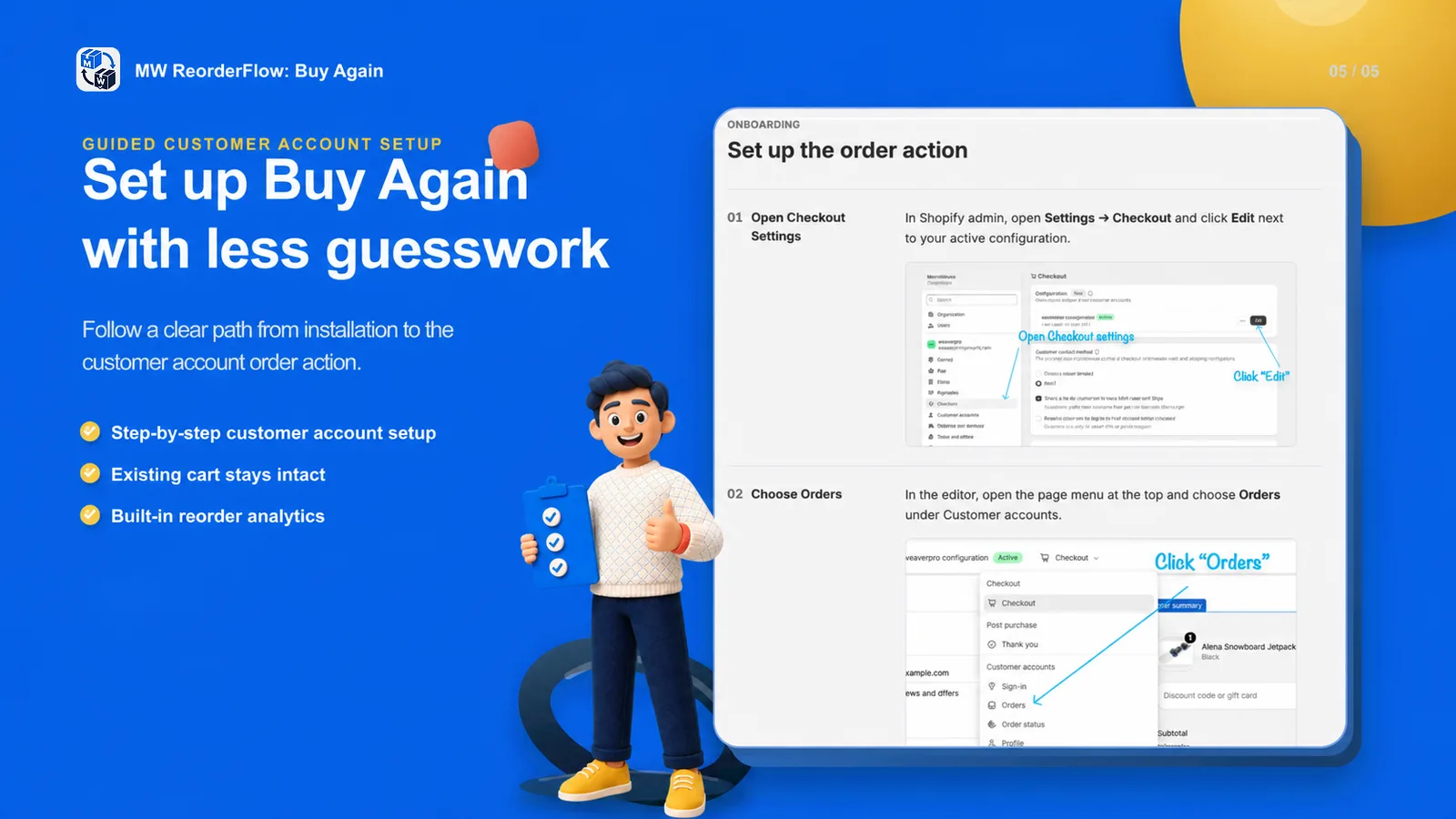
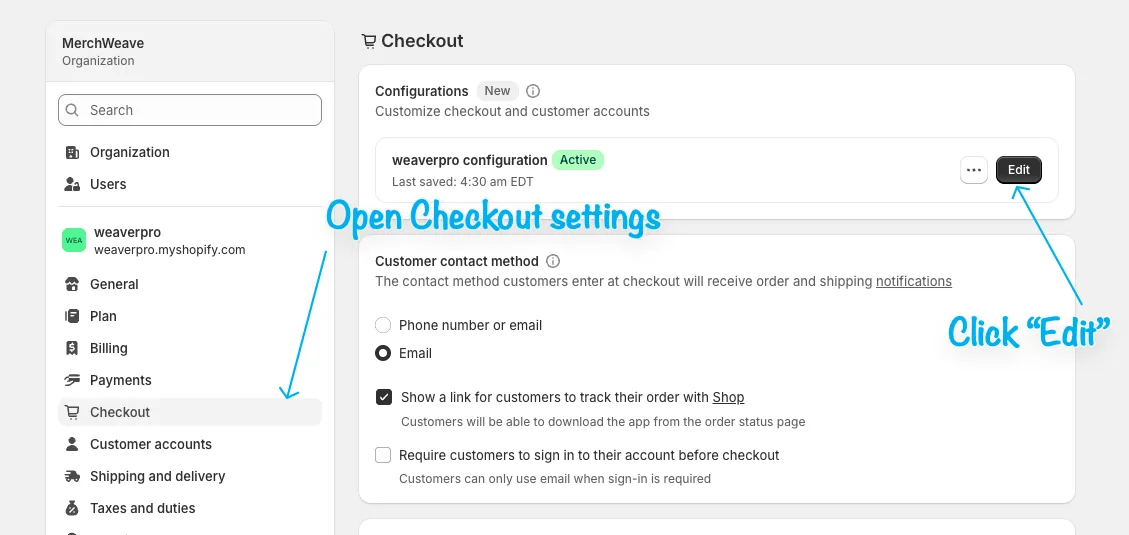
1. Open Shopify Checkout settings
In Shopify admin, open Settings → Checkout. Find the active customer account configuration and select Edit.
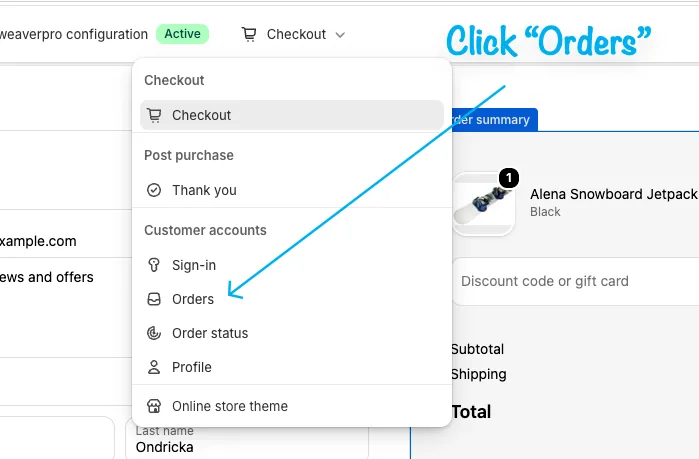
2. Open the customer account Orders page
In the editor, open the page selector at the top. Under Customer accounts, choose Orders.
3. Add the MW ReorderFlow block
Under Main, select Add block, then choose Buy Again. Save the customer account configuration after the block appears on the Orders page.
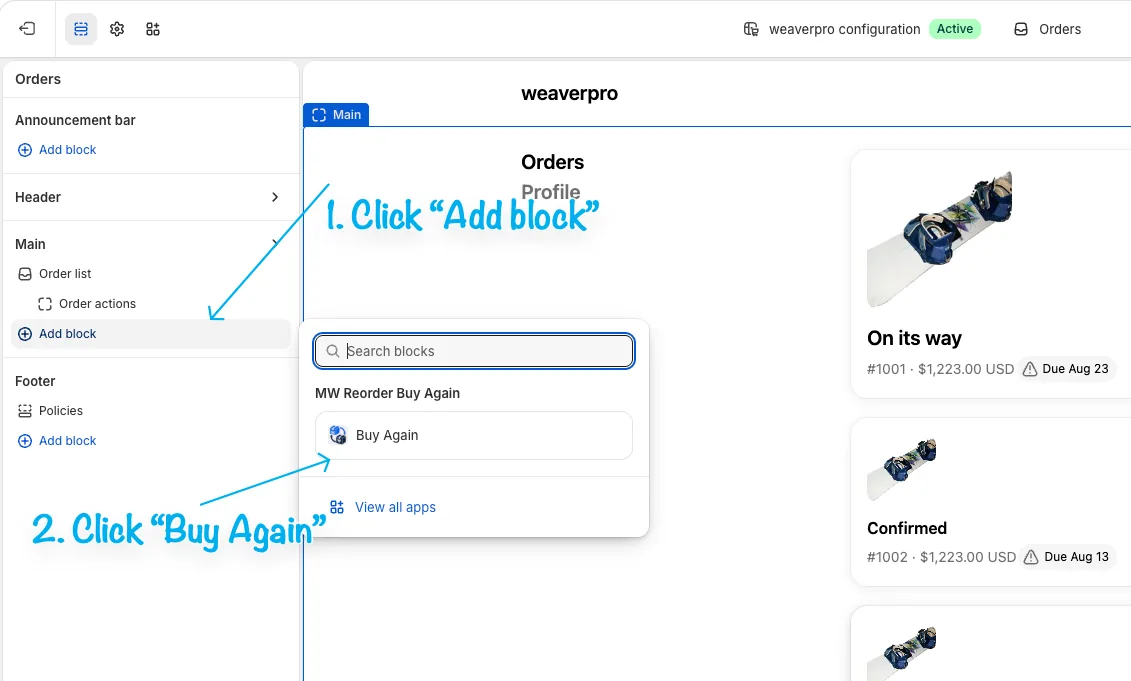
4. Disable Shopify's duplicate Buy Again button
Open the editor settings and turn off Shopify's native Buy again button. This leaves one clear reorder action for customers and avoids two buttons with different behavior.
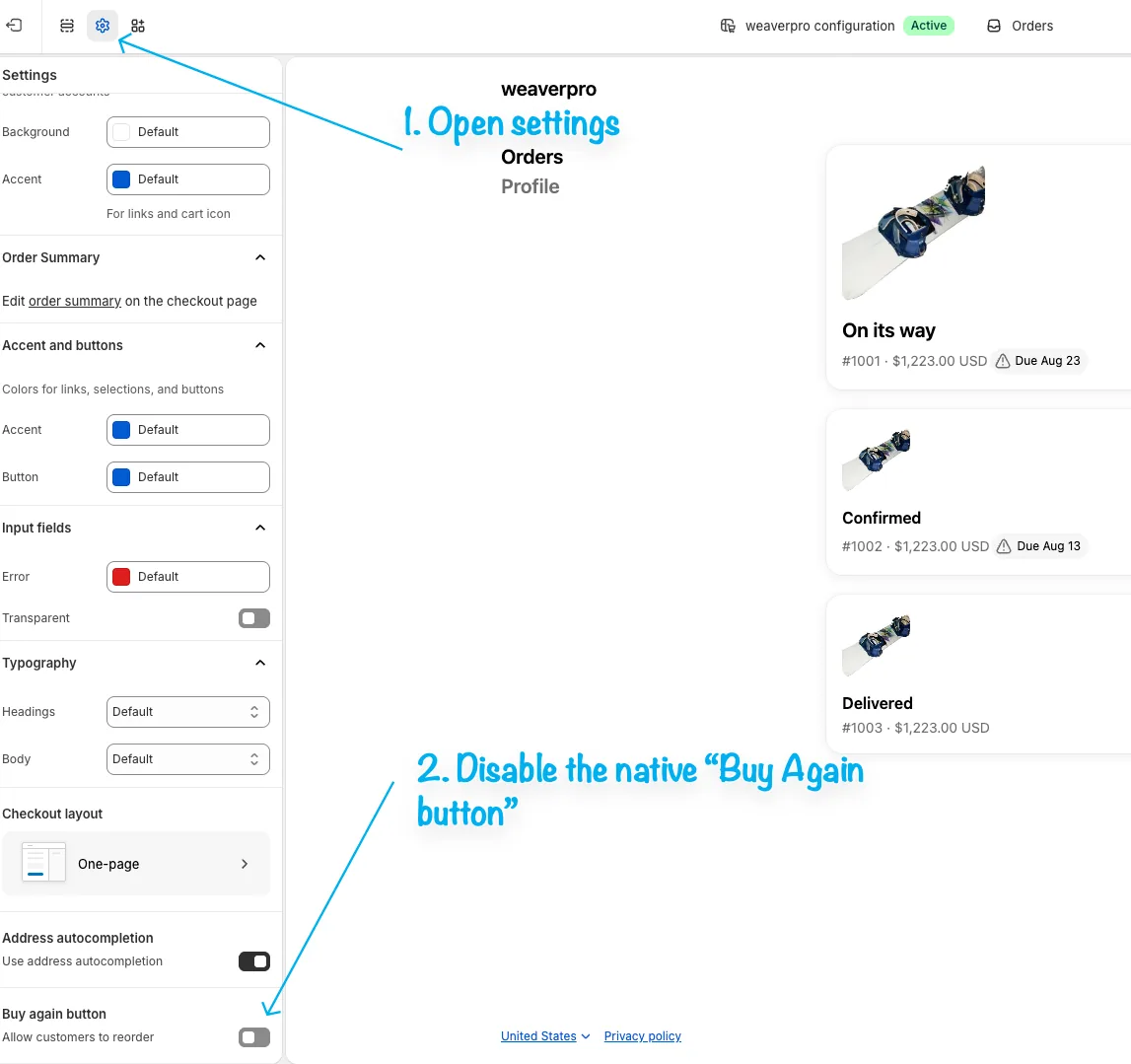
5. Test a paid order
Sign in to a customer account that has a paid order. Open the order, start Buy Again, change a quantity, and confirm that the selected lines are added without removing anything already in the cart. If an old product is unavailable, verify that the customer sees a choice instead of an automatic substitution.
What the customer can do
- select which past-order items to buy again;
- change quantities before adding products to the cart;
- see current prices and availability;
- choose an offered replacement for an unavailable item; and
- add relevant merchant-selected or recommended products.
For a full feature overview, see the Shopify reorder app page.